
Automatically turn email into tasks: set it up with AI
A request can disappear into your inbox. Here’s how to use Zapier and AI to turn an email with a label into a clear task, with a prompt you can copy right away.
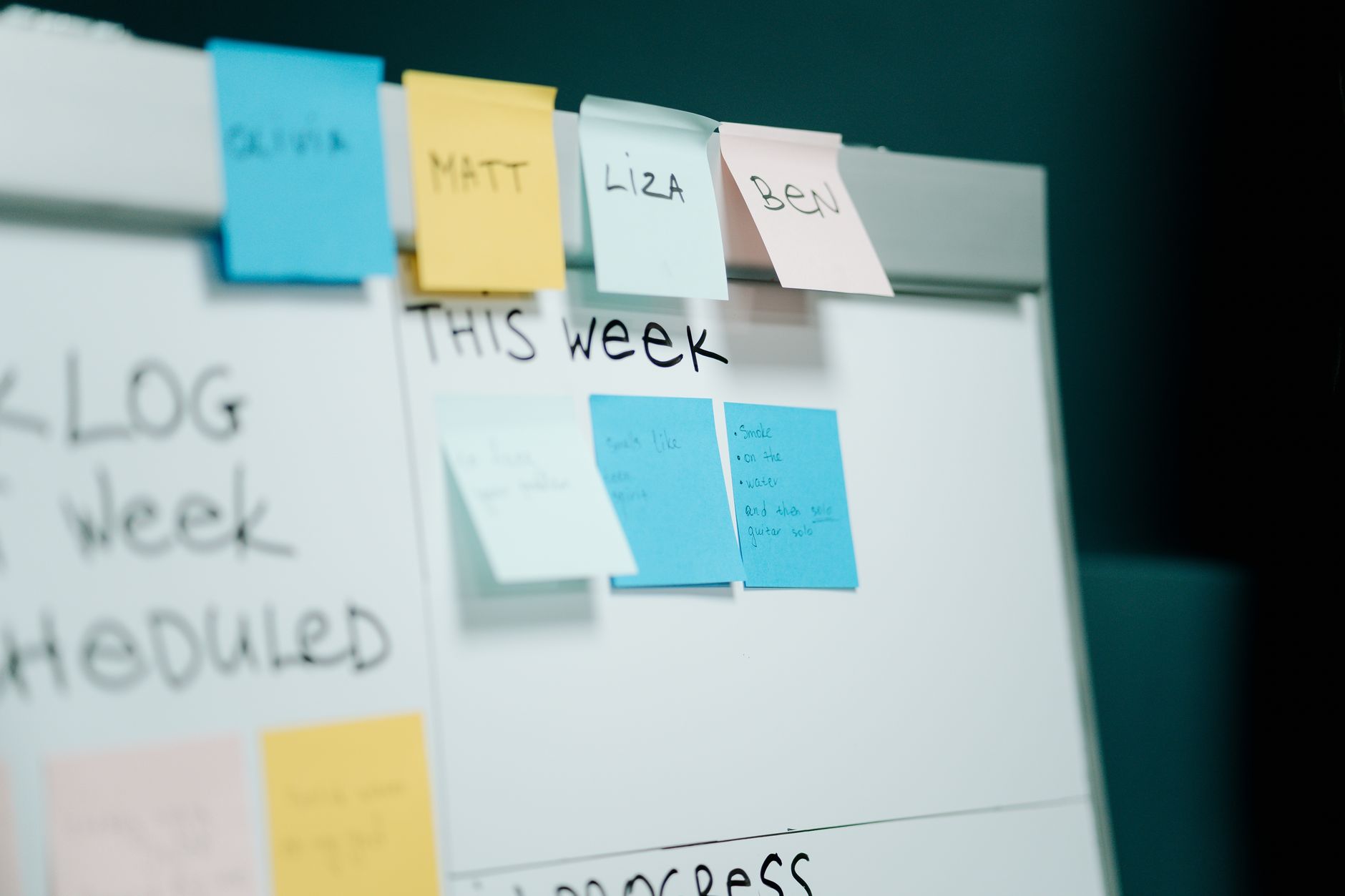
Automatically turn email into tasks is exactly what you want when you open your inbox on a Friday afternoon and see an email from Tuesday: a client asked for a tailored quote, but the task was nowhere to be found.
The question is simple: can’t that kind of request just land in your task list automatically? Yes, it can, with a connection between Gmail, Zapier, AI and a task list such as Google Tasks or Trello.
This article is about turning email into tasks. If you want to look more broadly at your inbox, read our explanation of email automation.
Can you automatically turn email into tasks?
Yes, you can automatically turn email into tasks with an automation that creates a task when a new labelled email arrives. You choose the email, AI turns it into a short task, and Zapier puts that task in your list.
A handy way to do this is with a label in Gmail. You read an email and see that action is needed. Then you give that email a label, for example Action. That label is the signal for Zapier to do something.
The aim is not for AI to take over your whole inbox. The aim is to stop individual requests from disappearing among newsletters, cc emails and old conversations. You decide which emails are important enough for your task list.
To do this, you usually need three parts:
- A Gmail account where you use labels.
- A Zapier account to build the connection.
- A task list, for example Google Tasks or Trello.
For the first time, expect something closer to half an hour to set up than a quick few-minute job. That is not a hard promise. It depends on your experience, your accounts and the screens you run into.
You do not need to code. You click the parts together and test with a sample email. But you do need to be precise, because the wrong label or a vague prompt can create a mess in your task list.
You can also do this with other automation tools. In this article, we use Zapier as the example, because the steps are clear for anyone who does not want to write code.
How does automatically turning email into tasks work with Zapier?
Automatically turning email into tasks with Zapier works with three parts: a trigger, an AI step and an action. The trigger sees that an email gets a label, AI turns it into task text, and the action puts that task in your task list.
A Zap is the name Zapier uses for such an automation. You can think of it as a recipe: if this happens, do that.
The basic steps are:
- Create a label in Gmail, for example Action.
- Start a new automation in Zapier with Gmail as the starting point.
- Choose the Gmail trigger for a new labelled email.
- Select the label you want to use.
- Add an AI step that summarises the email into a task.
- Choose the next step: a task in Google Tasks or a card in Trello.
- Test it with a sample email.
- Only switch the automation on once the result is right.
The names of buttons and steps can change. Zapier often uses English terms in the screens. So follow the function names you see on your own screen, rather than blindly clicking along with a guide.
The smart choice is to start small. Use one label, one AI step and one task list. That way you can quickly see whether the result is useful and avoid letting your entire inbox flow through the connection.
This also works with Dutch emails. AI can read a Dutch email and write a Dutch task description. Zapier’s screens may be in English, though, so expect terms such as trigger and action.
What does AI do, and which prompt do you use for email to task?
AI reads the email and writes a short, clear task from it. With a fixed prompt, you ask for the same parts every time, such as the task, deadline, sender and brief context.
That is especially useful for long emails or email threads. A client may explain what is needed in several paragraphs. AI turns that into a short task, so you do not have to cut and paste.
Still, you should not trust AI blindly. Dates in particular are tricky. If someone writes next Friday, AI has to understand which day that means from. That can go wrong.
So use a prompt with a fixed output. Then the next step knows better which text is the task title and which text belongs in the description.
The words in square brackets should be replaced by fields from your email or from Zapier. The text Email: [email text] is where the email content goes into the AI step.
The line Do not make anything up is important. It tells AI not to guess. If there is no deadline in the email, it should say unknown.
A real-world example makes this clear. Say Sanne is a Dutch online shop owner. She is self-employed and sells coffee online. In the weeks before Black Friday, she gets a lot of emails from customers and suppliers.
Sanne adds the label Action in Gmail to emails she needs to deal with. She does this on purpose herself. That way, only chosen emails go into the automation.
An example email is:
Hi Sanne, could you adjust the quote for 40 kilos of beans and send it back by Thursday at the latest? Best, Pieter from Café De Hoek
The AI step uses the same prompt as above. A likely result is:
Task: Adjust and send back quote for 40 kilos of beans | Deadline: Thursday (check date) | Sender: Pieter, Cafe De Hoek | Short context: Customer asks for an amended quote.
Zapier then creates a task in Google Tasks or a card in Trello. The title becomes, for example, Adjust and send back quote for 40 kilos of beans. The description contains the sender and the short context.
Sanne checks the date once more. Thursday is a relative deadline. Without checking, such a task could end up on the wrong day.
So treat the AI output as a good first version. You check the task before you rely on it.
Is it safe to let AI read emails?
That depends on what is in the email and on the settings of the tools. Do not send sensitive data if it is not needed.
Emails often contain personal data. Think of customers’ names, email addresses, questions from colleagues or business arrangements. In the Netherlands and Belgium, the GDPR applies to processing personal data.
So read the data processing agreement and the data settings of Zapier and of the AI provider you choose. These explain how the provider handles data and which choices you have.
Start with a label you set yourself. Then you can skip emails with medical, financial or staff information. That is safer than letting your whole inbox be read automatically.
Are you employed? First check your employer’s rules. Many organisations have agreements about which data you may and may not share with AI tools.
This is not legal advice. If in doubt, ask internally or look at general information from the Dutch Data Protection Authority. Also read our explanation of using AI safely.
Why does automatically turning email into tasks sometimes go wrong?
Automatically turning email into tasks usually goes wrong because of the wrong label, a delay in the trigger or a vague prompt. The fix is to start small, test properly and not expect everything to appear straight away.
The Gmail trigger for a new labelled email works with polling. That means Zapier checks at fixed moments whether there are new labelled emails. According to a reply from a Zapier employee, the free Zapier plan checks every 15 minutes. On paid plans, the check frequency depends on the plan.
So a task does not always appear immediately. Wait a moment before you conclude that the connection is broken.
Also check whether the label name in Gmail and in Zapier is the same. A small difference can be enough for nothing to happen.
Has the connection suddenly stopped? Then reconnecting Gmail may be needed. Look at the message in Zapier and follow the steps the tool shows.
These are common mistakes and how to fix them:
- Letting all emails be processed automatically. Tasks pile up and privacy-sensitive emails may go to AI. Solution: work with a label you set yourself.
- Not using a test email. The automation is switched on and may create a mess. Solution: test first with a sample email.
- Using a vague prompt. AI then writes long tasks or guesses. Solution: use fixed output and the line Do not make anything up.
- Expecting tasks to appear immediately. The trigger checks at fixed moments. Solution: allow for delay and check with the provider if speed matters.
- Copying deadlines blindly. AI can misread relative dates. Solution: check the date in the task.
Use this checklist before you switch on the automation:
- The Gmail label exists.
- The trigger chooses the right label.
- The test email worked.
- The task appears in the right list.
- No sensitive emails go through the flow.
- The deadline has been checked.
If these points are right, you have a much smaller chance of confusing tasks or missing actions.
How much does it cost, and when should you choose another tool?
There is a free plan, but limits and prices can change. So check with Zapier itself what suits your situation right now.
Zapier is a good fit if you want to build a connection quickly without code. Make or n8n may suit you better if you want more control over the steps. For that, read our comparison of Zapier, Make or n8n.
Which task list you choose depends on how you work. For yourself, a simple list is often enough. For teams, a board can be more useful.
| Task list | Best for | Note |
|---|---|---|
| Google Tasks | Simple personal list | Handy if you want to start small with separate tasks. |
| Trello | Teams and boards | Works well if you want to see tasks as cards on a board. |
| Microsoft To Do | People who already work in Microsoft | Check with the provider whether the Zapier connection fits your situation. |
| Asana | Work that is more project-based | Check with the provider whether the Zapier connection fits your situation. |
Start simple. One label, one AI step and one task list is enough to learn whether this works for you.
Only after that should you expand. Think of extra rules for different labels or a reminder just before a deadline.
Frequently asked questions
Can this also work with Outlook?
Yes, in principle this can be done through an Outlook connection in Zapier or through Microsoft Power Automate. Check with the provider which trigger fits your mailbox.
Is it free?
There is a free plan, but the limits and prices change. So check with Zapier what applies in your situation right now.
May AI read customer emails?
Only with the right agreements and in line with the GDPR. Read the section on safety and check your organisation’s rules.
Do I need to know how to code?
No, you build a Zap by clicking things together. But you do need to test carefully and set exactly which label, which AI step and which task list you use.
Why does the task not appear immediately?
The Gmail trigger for a new label checks at fixed moments. That means there can be a delay between labelling the email and the task appearing.
If you want to take it a step further after this, you can look at automatically replying to emails with AI, preferably first with a draft you check yourself. You can also later expand your automation with a reminder one day before the deadline.
Was this article helpful?